Printing Pro Tips
We recommend using Avery® Address Labels (8460), 1" x 2-5/8", which can be used with most standard inkjet and laser printers.
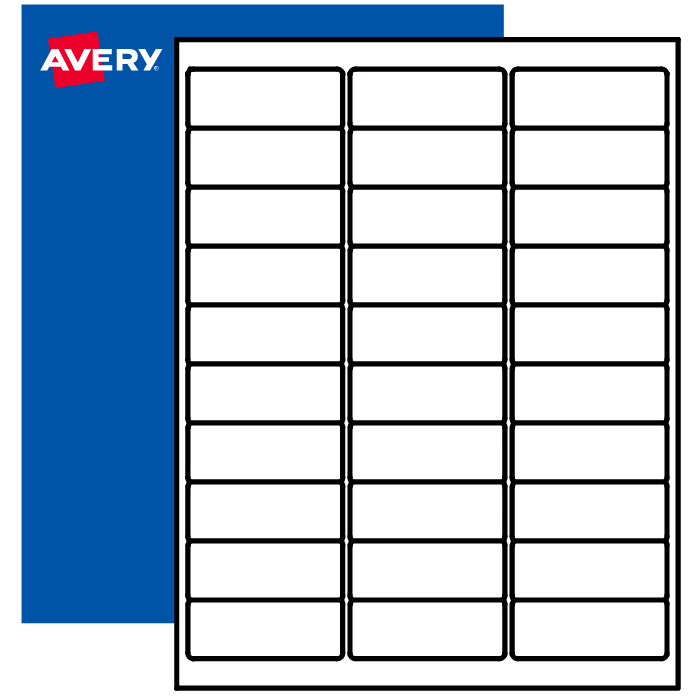
- Ensure printer settings follow label requirements as stated on the package
- Load one sheet at a time into the manual feed tray.
- Print a test sheet before doing a full run. Look for QR Codes or text cutting close to the edges.
- Don't use smudged, ripped, or damaged labels
The Types Of Labels You Can Install
1. QR Codes
QR Code labels support the check-in process at your counting locations. These tell the app where you are counting.
Q: Where do I place my QR Code?
A: Always place the QR Code in the center of the location, around eye level.
Q: What does "Label Orientation" mean?
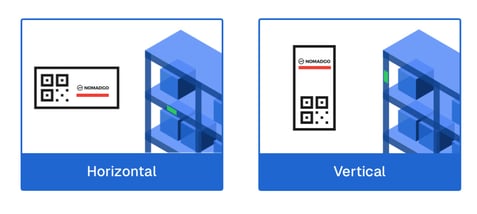
A: Orientation means the direction or position something is facing or arranged in, in relation to its surroundings.
💡Make sure NomadGo is upright and readable on the label
2. Shelf Labels
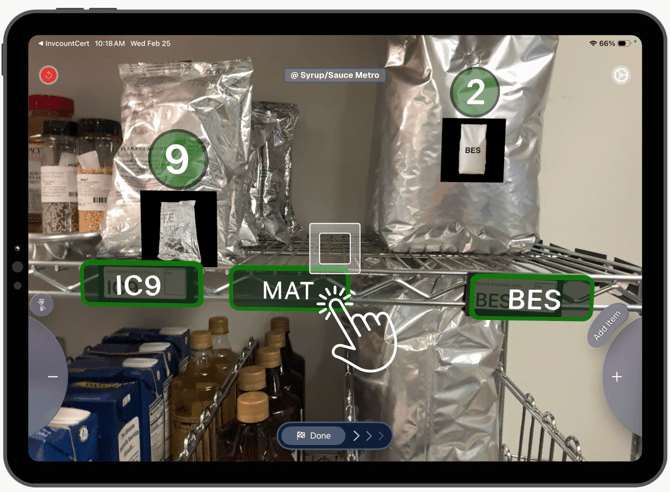
Shelf Labels = printed labels to count Products and Quick Lists. These tell the app what you are counting.
Q: Where do I place Shelf Labels?
A: Centered in front of the row of product to be identified.
Q: Why is there a label on screen that's not on the shelf?
A: Ghost Labels usually happen when a label has been moved or removed from your counting location. Tap the Ghost Label on screen to delete them, then scan them in again in their new position to re-register them with the app.