The Start Screen
Actions to take before every count
The first thing you will do before every count is ensure products follow the Inventory Basics guidelines:
Step 1: Open the Inventory Counts App from your device
Upon opening, the app will prompt you to login.
Step 2: Open the NomadGo App
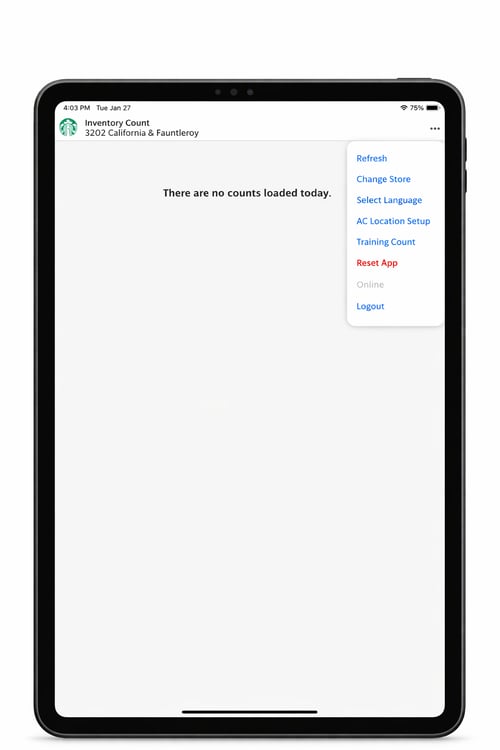
Once the Inventory Counts App has loaded, you will have 3 options for launching the NomadGo "Vision" app:
-
AC Location Setup - used to set up and configure storage locations. Tap the settings menu in the top-right and select AC Location Setup to manage locations.
- Training Count - used to practice and train using the app. Tap the settings menu in the top-right and select Training Count to practice using the automated count features.
-
Inventory Count - the Automated Count tile will appear if a count is available. Ensure type 'Vision' is selected before starting the count.
Settings Menu
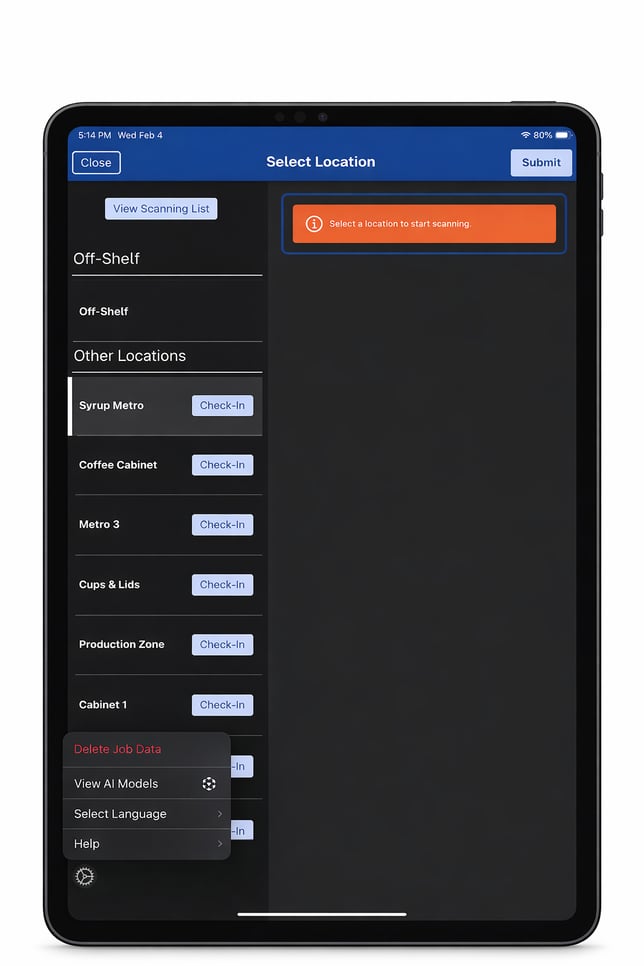
The App Settings Menu can be opened by tapping the cog in the lower-left corner. Here, you can delete count data, view AI models, modify basic settings like selecting a language, or access helpful resources.
Manage Locations and Print Labels are covered in Store Setup.
- Delete Job Data: Deletes all progress for the current count
- View AI Models: Verifies all updates have downloaded properly
- Select Language: Language options include; Spanish, French (Canada), English, and French (France)